UPSC CSE Prelims Admit Card 2026 – Download Here Hall Ticket
Contents
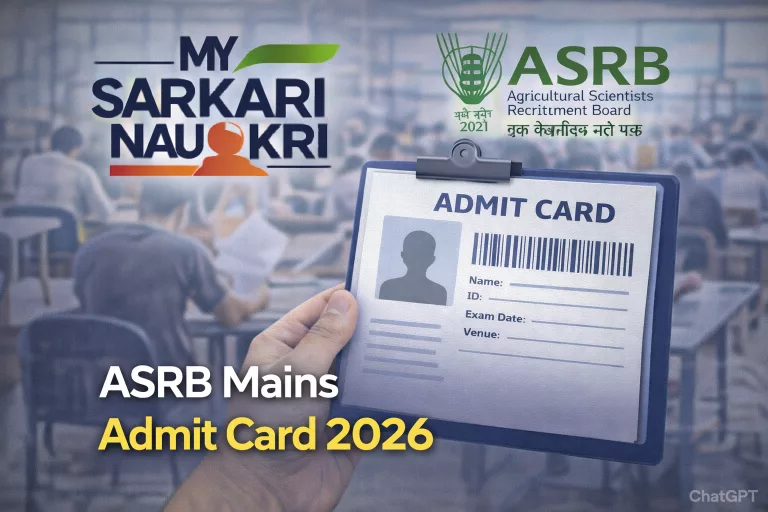
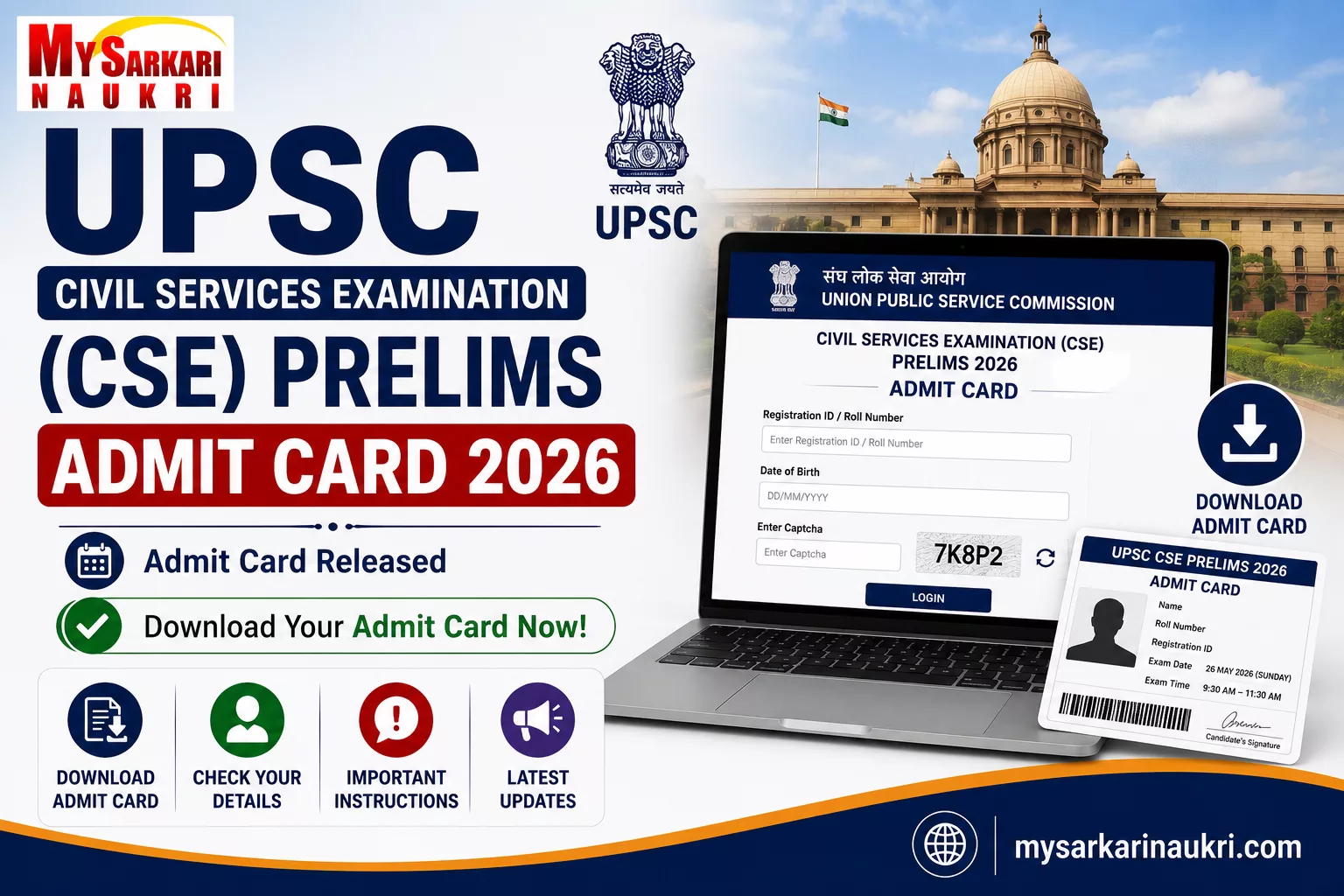
UPSC Prelims Admit Card 2026 has been released by the Union Public Service Commission on 11 May 2026. Candidates who applied for the Civil Services Examination can download their hall ticket from the official website upsc.gov.in. The written examination (Prelims) is scheduled for 24 May 2026 across various centers in India. This hall ticket is mandatory for appearing in the exam.
Direct Download Link
Click below to access the official portal for downloading your admit card:
Download UPSC Prelims Admit Card 2026 from upsc.gov.in
Key Details
- Conducting Authority: Union Public Service Commission (UPSC)
- Exam Name: Civil Services (Preliminary) Examination 2026
- Admit Card Release Date: 11 May 2026 (Released)
- Exam Date: 24 May 2026
- Total Vacancies: 933 Posts
- Exam Mode: Offline (Pen & Paper Based)
- Official Website: upsc.gov.in
How to Download Admit Card
- Visit the official UPSC website at upsc.gov.in.
- Navigate to the “E-Admit Cards” or “Latest Announcements” section.
- Click on the “UPSC Civil Services Preliminary Examination 2026” admit card link.
- Enter your Registration ID / Roll Number, Date of Birth, and Captcha Code.
- Click on “Submit” or “Download Admit Card”.
- Your admit card will appear on screen; download and save the PDF.
- Take 2-3 printouts for exam day.
Pro Tip: Check all details immediately after download and report discrepancies to UPSC helpdesk.
Documents to Carry on Exam Day
- UPSC Prelims Admit Card 2026 (printed copy with clear photograph)
- Valid Photo ID Proof (Aadhaar Card, Voter ID, Driving License, PAN Card, or Passport)
- Recent passport-size photographs (if required)
- Simple pen (blue/black ballpoint)
Important Instructions
- Reach the exam center 45-60 minutes before reporting time.
- Entry closes before exam starts; no late entry allowed.
- Not allowed: Mobile phones, smartwatches, calculators, books, notes, bags.
- Follow invigilator instructions and manage time wisely.
Frequently Asked Questions
If the photo is missing or unclear, contact UPSC helpdesk immediately before the exam date to get it corrected.
No, only a printed copy of the admit card is accepted. Ensure it has a clear photograph and signature.
Try clearing browser cache, using a different browser, or checking your application status. If issues persist, contact UPSC helpdesk immediately.
While no specific dress code is mentioned, wear simple, comfortable clothing without large buttons or accessories to avoid delays during frisking.
Use the “Forgot Registration ID” option on the login page or contact UPSC helpdesk for assistance.